14 May 2026
Fixing Bluetooth Headphone Pairing Hell in Dual Boot Setups
I dual-boot Linux and Windows, and my Bluetooth headphones refuse to reconnect without re-pairing every time. Same MAC address, different keys. Bluetooth has trust issues.
The pattern is depressingly predictable. I use my headphones on Linux, reboot into Windows, and Bluetooth sees the device, insists it's trusted... and then refuses to connect anyway. Switch back the other way, same story. The only "fix" is forgetting the device and re-pairing it. Every. Single. Time. Why does this happen, and who can I blame for this minor first world inconvenience?!
Why this happens
Bluetooth pairing is a cryptographic key exchange. When you pair a device, both sides generate a Link Key and stash it away, and that key is what authenticates and encrypts every future connection.
Now here's the trap: Windows and Linux run on the same machine, which means they share the same Bluetooth adapter and therefore present the same MAC address to the headphones. As far as the headphones are concerned, they're talking to one device. A device that, weirdly, keeps showing up with different credentials.
Play it out:
- You pair on OS #1. The headphones store a link key for MAC address
AA:BB:CC:DD:EE:FF. - You reboot into OS #2 and pair again. The headphones overwrite the stored key for that same MAC.
- You switch back to OS #1. Its key no longer matches what the headphones have, so the connection gets rejected.
The headphones have no idea you switched operating systems. They just see AA:BB:CC:DD:EE:FF waving around the wrong key and, quite reasonably, refuse to talk to it. Re-pairing works because it forces a fresh key, but then the other OS is the one holding stale credentials. Round and round we go.
The fix: sync the Bluetooth keys
If the problem is two OSes holding different keys, the fix is obvious. Make them hold the same key. Extract the Link Key from one OS and plant it in the other. Then it doesn't matter which one you boot into, the headphones see the same MAC with the same credentials and connect happily.
The direction technically doesn't matter, but I find it easiest to extract from Windows and import into Linux, so that's what I'll walk through.
Step 1: Pair on Windows
Connect the headphones on Windows and make sure they actually work. If you've already paired them on Linux, forgetting them there first helps avoid confusion later.
Step 2: Extract the pairing keys from Windows
Boot into Linux. Windows keeps its Bluetooth keys in the registry, at:
Windows uses 'Fast Startup' which makes the system go into a hibernation-like state instead of fully shutting down. When this happens you can only mount the partition read-only, which does not work with chntpw. To avoid this, either disable Fast Startup in Windows, do a full shutdown (hold Shift while clicking 'Shut down'), or reboot and choose 'Linux' from GRUB.
HKEY_LOCAL_MACHINE\SYSTEM\ControlSet001\Services\BTHPORT\Parameters\Keys
Depending on your install, the active control set may differ, but ControlSet001 is usually the right one when reading the SYSTEM hive offline.
Reading the registry from Linux requires chntpw:
sudo pacman -S chntpw # or your distro's equivalent

# Mount the Windows partition
sudo mkdir /mnt/windows
sudo mount -t ntfs-3g /dev/sdXY /mnt/windows # replace with your Windows partition

# Navigate to the registry hive
cd /mnt/windows/Windows/System32/config
Open the SYSTEM hive:
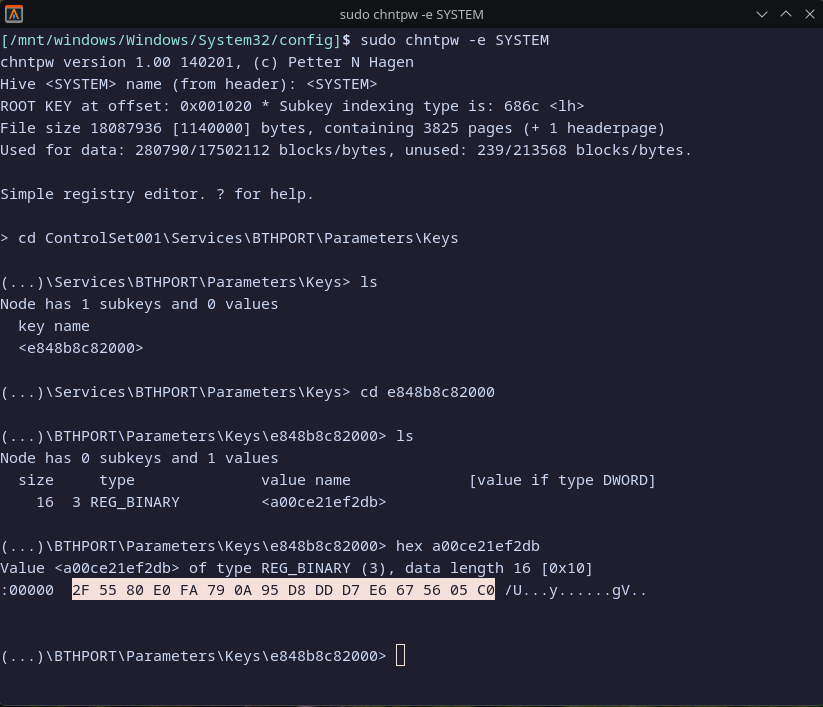
sudo chntpw -e SYSTEM
Inside the chntpw prompt, navigate down to the Bluetooth keys:
cd ControlSet001\Services\BTHPORT\Parameters\Keys
ls
You'll see a folder named after your Bluetooth adapter's MAC address. cd into it:
cd <adapter MAC> # replace with your adapter's MAC
ls
That lists your paired devices, and your headphones' MAC should be among them. Dump the Link Key with:
hex <headphones MAC> # replace with your headphones' MAC
Out comes the Link Key in hexadecimal, 32 hex characters (16 bytes). Write it down (or copy it like a sane person). Type q to quit chntpw.
Step 3: Write the key to Linux
On the Linux side, pairing info lives in /var/lib/bluetooth. There's a folder per adapter, and inside it a folder per paired device, each with an info file holding, you guessed it, the Link Key.
Stop the Bluetooth service first (assuming systemd):
sudo systemctl stop bluetooth
Then edit the info file for your headphones.
The device must already be paired once in Linux so the info file exists.
sudo vim /var/lib/bluetooth/<adapter MAC>/<headphones MAC>/info
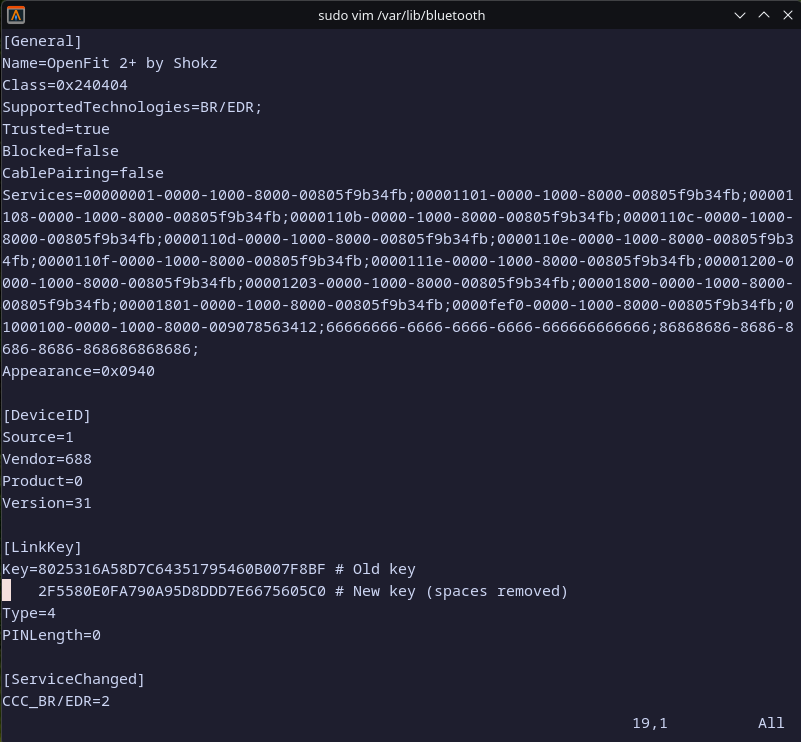
Find the [LinkKey] section:
[LinkKey]
Key=00000000000000000000000000000000
Swap in the key you pulled from Windows. Just the 32 hex characters, no spaces or separators.
Step 3.5: Fix the Handsfree service
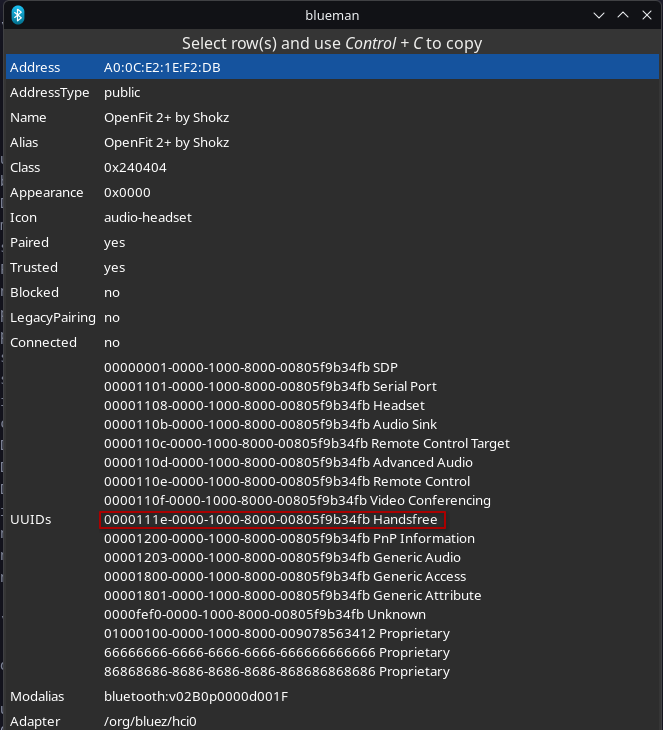
One extra gotcha: if you disabled the handsfree service in Windows to avoid conflicts, you'll need to disable it in Linux too, or things get weird. In the same info file, look at the [Service] section. Handsfree usually shows up as 0000111e-0000-1000-8000-00805f9b34fb, and you can verify by checking the device properties.

Save the file and bring Bluetooth back up:
sudo systemctl start bluetooth
Step 4: Test it out
Reboot to Windows and the headphones should connect without re-pairing. Back to Linux, same thing, seamless. Both OSes now hold the same Link Key for the same MAC address, so as far as the headphones can tell, they've been talking to one well-behaved device all along.
What I learned
I knew Bluetooth pairing involved some kind of security handshake, but I'd never actually looked at how the keys get stored, or why dual-booting breaks everything. A few things stuck with me:
- The MAC address collision is the entire problem. Give Windows and Linux separate Bluetooth adapters and this never happens, since the headphones would just see two different devices with two independent sets of keys.
- Windows and Linux store the exact same information, just in wildly different places. The Link Key format is identical; the whole fix is reading it out of a registry hive and pasting it into a text file under
/var/lib/bluetooth. - chntpw is more useful than I gave it credit for. I'd filed it away as "that Windows password reset tool," but being able to browse and dump arbitrary registry keys from Linux makes it a genuinely handy dual-boot debugging tool.
The real takeaway: your Bluetooth devices only get to store one set of pairing keys per MAC address. If two operating systems share that MAC, they'd better agree on the keys, because the headphones certainly won't take sides.
// comments